

Scheduling and publishing
Cette page n’est pas encore traduite : voici la version anglaise.
You get a posting calendar for the week, slots per account at the times you choose, and at each post’s time a notification. Click it and Reelfold opens the platform’s own upload page, sets the video made for that platform and types the title, text and tags. You check it, make the choices only you should make, and press publish yourself. Reelfold sees the page confirm it and marks the post as posted. The only exception is a platform where you connect an official posting API yourself (YouTube today): there, scheduled posts go out on their own.
Before you start
Section titled “Before you start”- Finished clips that you approved, packaged per platform (see One master, many platforms).
- Your publishing accounts for each platform. One platform can have several accounts.
- The Mac app. The Claude Code skill can build packages and a schedule, but assisted upload runs in the app’s built-in browser.
Sign in to your accounts once
Section titled “Sign in to your accounts once”- Open Publishing accounts in Settings (also reachable from the Publish page) and add each account: platform, a name like
@myhandle, and its default post times, for example12:00, 19:00. - Press Sign in. The platform’s own login page opens inside the app. Sign in there as you normally would.
- The built-in browser keeps one persistent login per account on this Mac. The app never stores your password or cookies itself. It shows each account as signed in or signed out by checking whether the platform’s session cookie is set in that account’s own browser session (only the cookie’s name is looked at, never its value), so any page of the platform counts, the creator center home included, and signing in inside the panel updates the state at once.
Only the platforms you chose under Settings › General › Platforms for new projects count as yours: they appear in a post’s Where, and only they can show “signed out, can’t publish yet” on the Settings status line. An account on another platform is listed apart with no reminders.
Plan the week
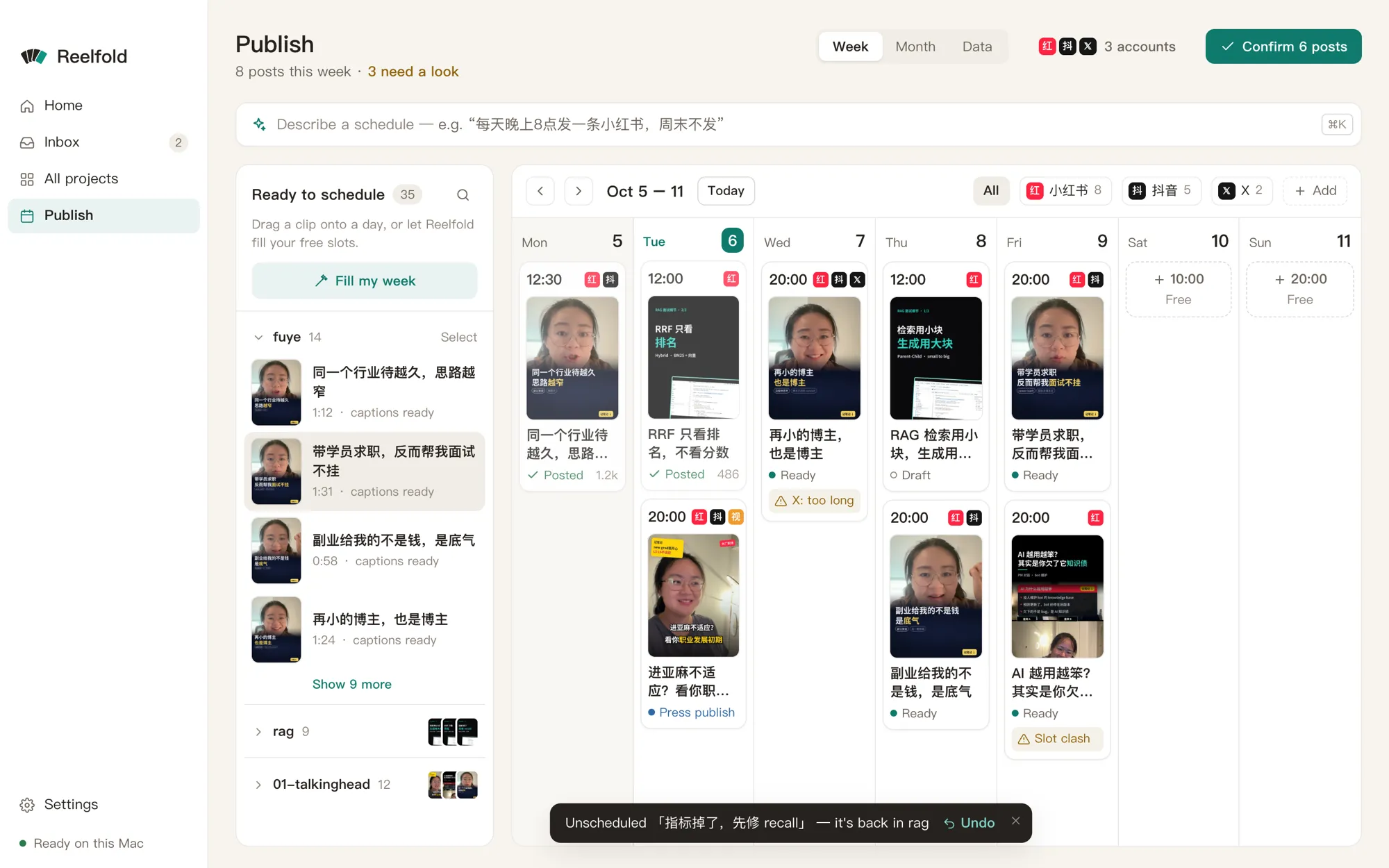
Section titled “Plan the week”The Publish page is a week board (also a month view):
- Finished clips wait in Not scheduled. Drag one onto a day, or into a free slot.
- Let AI schedule fills the free slots for you.
- Gaps show where an account has nothing planned on a day it should post.
- Confirm this week marks the scheduled posts as ready.
Series
Section titled “Series”A series keeps a recurring show consistent: its recipe, settings, platforms, accounts and a cadence such as five posts a week. New projects in the series inherit all of that, and the calendar shows where the series falls behind.
Titles
Section titled “Titles”The title at the top of a post’s drawer is editable: click it, type, press Enter (Escape puts it back). It applies to every platform of the post. Platforms that have a title field get their own Title on … field in their caption tab, with that platform’s counter: Xiaohongshu 20 (latin letters and digits count half), Douyin 30, WeChat Channels 16, Bilibili 80, YouTube 100. A title over the limit is marked, never cut. Use the card’s title removes a platform’s own title.
How scheduling works
Section titled “How scheduling works”A scheduled post is not just a calendar entry: Reelfold acts at its time.
- At the time, while Reelfold is running (turn on Settings › Publishing › Open at login so it starts in the menu bar when you log in), you get a notification: “Time to post: title → Xiaohongshu”. The menu-bar icon lists what is due.
- Click it. The post’s page opens with the platform’s upload page on the right, in that account’s session. Reelfold sets the video made for that platform (the 3:4 or 9:16 version for Xiaohongshu, 16:9 for YouTube …) and types the title, text and tags, then outlines the Publish button.
- You check the page and make your choices (cover, topics, AI-content label, who can see it), then press Publish.
- Reelfold watches the page. When the platform confirms (a success page or “发布成功”), the post is marked posted, with the post’s link when the page shows one. I published it marks it by hand.
- If Reelfold was closed at the time, the posts that came due wait at the top of Publish and Home: “2 posts are due”, each with Post now.
If the account is signed out, the fill stops and asks you to sign in on the page, then Fill again. If a field is not found (platforms change their pages), the step list shows which one; fill it by hand, and send a page capture (below) so the adapter can be fixed.
Publish a post now
Section titled “Publish a post now”- On the board, open a post and choose Open assisted fill, or click a due post’s Post now.
- Reelfold sets the video file and types the title, text and tags where the page allows it.
- You check everything and make the choices that are yours: category, audience, the AI-content label, a subreddit, a Pinterest board. On B站, for example, the 分区 and 自制 / 转载 are never pre-filled.
- You press publish. The app may outline the button; it never clicks it.
- Reelfold marks the post as posted when the page confirms it; otherwise Mark as posted and paste the post’s URL.
When a platform asks you to sign in again
Section titled “When a platform asks you to sign in again”Logins expire. When the upload page turns out to be a login page, the fill stops there and the account shows as signed out.
- Go to Publishing accounts and press Sign in again on that account.
- Sign in on the platform’s page in the built-in browser (password, QR code, whatever it asks).
- Return to the post and open assisted fill again. Nothing you prepared is lost.
Assisted fill works for projects that have a publish package. If auto-fill isn’t ready for a platform yet, open its upload page and use copy caption and show file instead.
With the Claude Code skill
Section titled “With the Claude Code skill”Claude can prepare everything up to the upload:
python -m vstudio.batch package --batch B --per-day 2 --start 2026-10-10 --times 12:00,19:00writes per-platform folders, aschedule.csvand a confirmation code.- The project calendar (
python -m vstudio.project calendar ...) defines accounts with their post times, places exported clips in the next free slots, and lists gaps. - Without the app,
uploader: manualprints the upload page, the steps,caption.txt, the cover and a checklist for each post.
Posting automatically with an official API (opt-in)
Section titled “Posting automatically with an official API (opt-in)”Assisted fill is the default everywhere. A platform posts on its own only when it has an official posting API and you connect your account in Settings › Publishing › Post automatically. Sign-in happens in your system browser on the platform’s own page, with the permissions shown first; tokens are kept in the macOS keychain.
| Platform | Status | What you need |
|---|---|---|
| YouTube (and Shorts) | Available. Scheduled posts upload an hour ahead as private with YouTube’s own publishAt, so YouTube publishes them at your time even if your Mac sleeps. Opened late (up to 6 hours), they go up public at once; later than that you get the notification instead. Failed uploads are retried 3 times, then you get the notification. |
Your own Google Cloud OAuth client: create a project, enable YouTube Data API v3, configure the OAuth consent screen (add yourself as a test user), create an OAuth client ID of type Desktop app, and paste its ID and secret in Settings. Permission asked: youtube.upload only. Google locks uploads from unaudited API projects to private: to publish publicly, request the YouTube API Services audit for your project. Default quota: about 6 uploads a day. |
| TikTok | Not yet. The Content Posting API’s direct post needs TikTok’s app audit; until then private-only. Upload-to-inbox also needs an approved developer app. | Assisted fill. |
| X | Not yet. Media upload and posting need a paid API tier. | Assisted fill. |
| Not yet. The Graph API needs a Business or Creator account linked to a Facebook Page, Meta app review, and the video at a public URL. | Assisted fill. | |
| Chinese platforms | No public posting API for individual creators. | Assisted fill. |
With the skill, official APIs stay off by default; where you turn one on, every upload still needs the confirmation code of the exact package you reviewed.
When auto-fill misses a field: capture the page
Section titled “When auto-fill misses a field: capture the page”Platforms change their upload pages. Each platform’s fill steps live in a small adapter file; the Xiaohongshu and Douyin ones look for fields by their placeholder and label text (“填写标题”, “作品简介”, the “发布” button), with fallbacks, and are marked unverified until checked against your live page.
- Open the upload page in the built-in browser (a post’s page, or Publishing accounts → the account’s upload page) and add a video so the whole form shows.
- Press Capture this page in the browser bar.
- Reelfold saves a redacted copy of the page structure to
~/Library/Application Support/Reelfold/captures/and shows it in Finder. It keeps tags, classes, roles, placeholders and short labels; it drops cookies and storage (never read), what you typed, editor contents, images, links and anything that looks like a name, ID, phone number or e-mail. - Send that file to whoever maintains your adapters (or open an issue). The fixed adapter goes in
~/Library/Application Support/Reelfold/adapters/without rebuilding the app.
Options worth knowing
Section titled “Options worth knowing”| Option | What it does |
|---|---|
| Default post times | Per account; new calendar slots use them. |
| Open at login | Starts Reelfold in the menu bar at login so notifications arrive on time. |
| Post automatically | Per connected API (YouTube): scheduled posts of that platform go out on their own. |
| Series cadence | Posts per week the calendar expects for the series. |
| Account tier | Some limits depend on it, for example X Premium. |
| AI label | Every Chinese platform, YouTube, TikTok and Meta have an AI-content toggle. You tick it; the checklist reminds you. |
Example prompts
Section titled “Example prompts”- “Schedule these 12 clips over the next two weeks: Xiaohongshu at noon, Douyin at 7 pm, one a day each.”
- “Make ‘Interview tips’ a series that posts five times a week on my main Xiaohongshu account.”
- “Open the upload page for tomorrow’s Douyin post and fill it in.”
- “What’s missing from this week’s calendar?”