

Course slicing
Esta página aún no está traducida; aquí tienes la versión en inglés.
You get a lecture recording turned into a clean course video and/or a set of short episodes, plus optional 3:4 or 9:16 vertical slices where the code and slides stay readable. Dead air and chatter are cut, the browser bar is cropped away, and a student’s voice can be disguised.
Before you start
Section titled “Before you start”- The recording: a Zoom, Meet or Teams class, a webinar, a screen-share lesson. Typically 30 to 120 minutes.
- Who’s who. Which voice is the teacher. Speaker labels from meeting apps are often wrong, so decisions are made from what was said.
- What has to stay private: participant tiles, name tags, emails, bookmarks. Anything that names or identifies a participant comes out of a public video.
- Terms you use a lot, so captions get them right. If something you said is now outdated, a correction note can be burned in.
What you can make
Section titled “What you can make”| Output | What’s in it |
|---|---|
| Course video (16:9) | A hook cold open, chapter cards, the body sped up, zoom cut-ins on code, notes panels, burned captions, 16:9 and 3:4 covers, a publish pack with the chapter timeline. |
| Episodes | The course split at chapter-card boundaries, each with its own cover. Useful for Xiaohongshu, where regular videos are capped at about 15 minutes. |
| Vertical slices (3:4 or 9:16) | Per episode or per clip: a band on top, the screen below following the content, captions in the platform’s caption area, a cover and a post stub. |
There’s no music bed: it was tested under lectures and rejected. Chapter cards get a short stinger.
In the Mac app
Section titled “In the Mac app”- On Home, describe the job and add the recording. Say “course” if you want the full 16:9 cut and episodes, or “clips” if you only want vertical slices.
- The plan names the recipe (Recording to course, or Long recording to shorts), the platforms and whether vertical slices are included.
- Keep ranges and chapters. For the course cut, the transcript is split into numbered blocks and someone decides what stays and where chapters start. You can ask the agent to draft it, then check it.
- Confirm filler cuts, one review sheet per episode.
- The batch renders the course, the episodes and the slices on your Mac.
- Privacy check. Look at the QA mosaics: zero participant avatars, name tags, bookmark bars or emails. This one is always a human look.
- Review and publish.
With the Claude Code skill
Section titled “With the Claude Code skill”Say what the recording is and what you want out of it. The skill follows workflows/longform-to-short: it transcribes, finds the shared page and crops off the browser chrome and bookmark bar, splits the transcript into blocks, and drafts the keep ranges and chapters for you to approve. You can then ask for zoom windows where code is walked through, a cold-open hook, freezes over accidental tab flashes, or a student’s question kept with their voice changed. Every decision lives in one config file, so changing one thing is a cheap re-run.
Vertical slice layouts
Section titled “Vertical slice layouts”| Layout | What it does |
|---|---|
| Split (default) | Speaker band on top, the screen below. The band is your own camera tile, tracked by face. With no camera, it becomes a title band with the series and chapter, so participant tiles never appear. |
| Screen | The whole area is the screen: the main text block, zoomed until a line of text is at least 28 px tall on the canvas, following typing and highlights. |
| Speaker | Just the speaker crop. |
| Pad-blur | The whole screen region fitted to the width over a blurred fill. |
The screen crop never leaves the shared page, the speaker crop never leaves the host’s camera, and excluded regions are painted out of every frame before anything else. Only point the speaker band at your own camera.
Options worth knowing
Section titled “Options worth knowing”| Option | What it does |
|---|---|
| Platforms | Default YouTube plus Xiaohongshu 3:4. Covers and captions are re-fitted per platform. |
| Vertical slices | Off by default in the course recipe. Turn on to get 3:4 / 9:16 versions of the episodes. |
| Episodes | A count (split at chapter cards) or explicit chapter ranges with their own cover copy. |
| Zoom windows | Time ranges where code or a doc is walked through. The zoom centre is found automatically. |
| Student voice change | Chosen windows are pitched down about 3 semitones; your voice is unchanged. |
| Privacy regions | Rectangles painted out of every frame (participant tiles, name tags). |
| Corrections | An on-screen correction note for something now outdated, and a line for a pinned comment. |
Example prompts
Section titled “Example prompts”- “Cut this 90-minute Zoom class into a course video for YouTube and episodes for Xiaohongshu. Remove the small talk and the browser bar.”
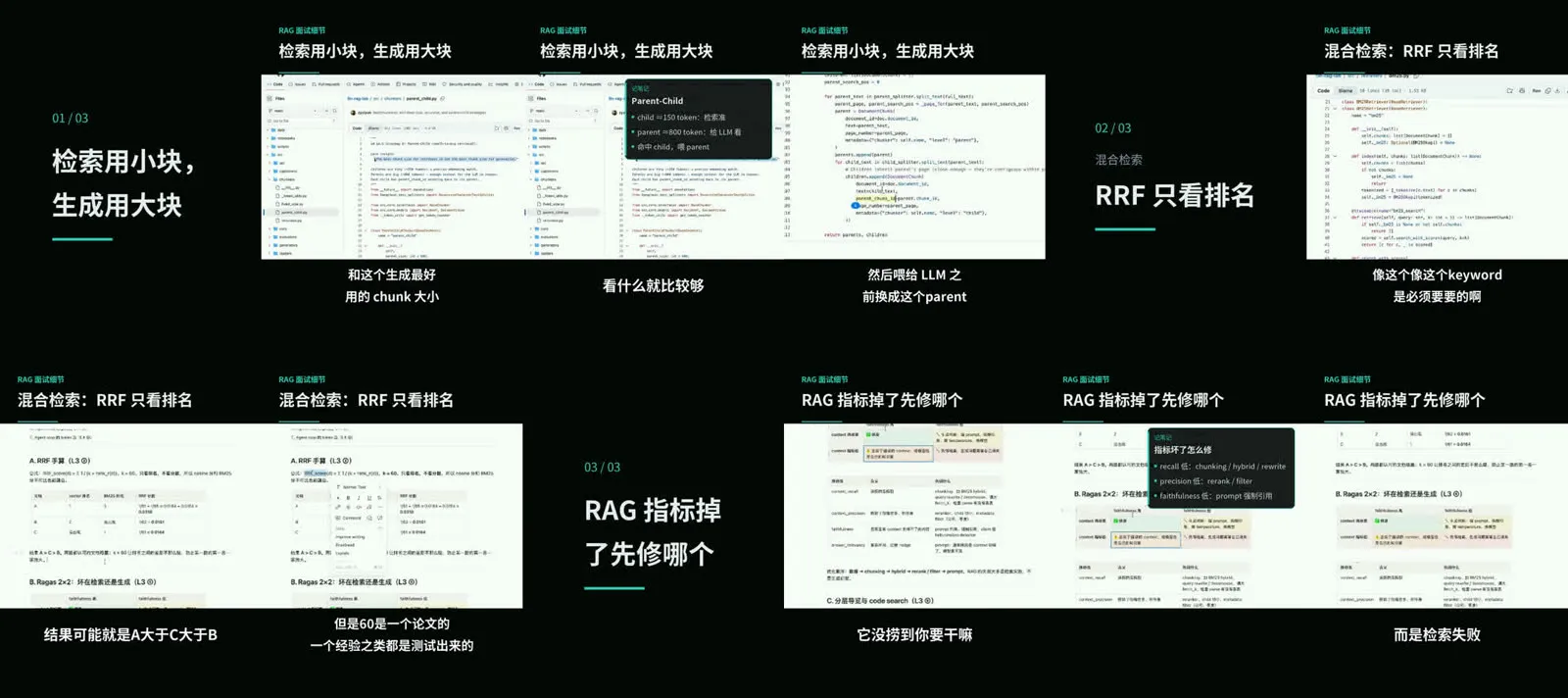
- “Make 3:4 slices of each episode with a title band. The series is called RAG Interview Notes.”
- “Zoom in when I walk through the code around 35 minutes, and change the voice of the student who asks the question at 52:10.”
- “Episode 3’s cover text is too long. Shorten it.”